

Deleted
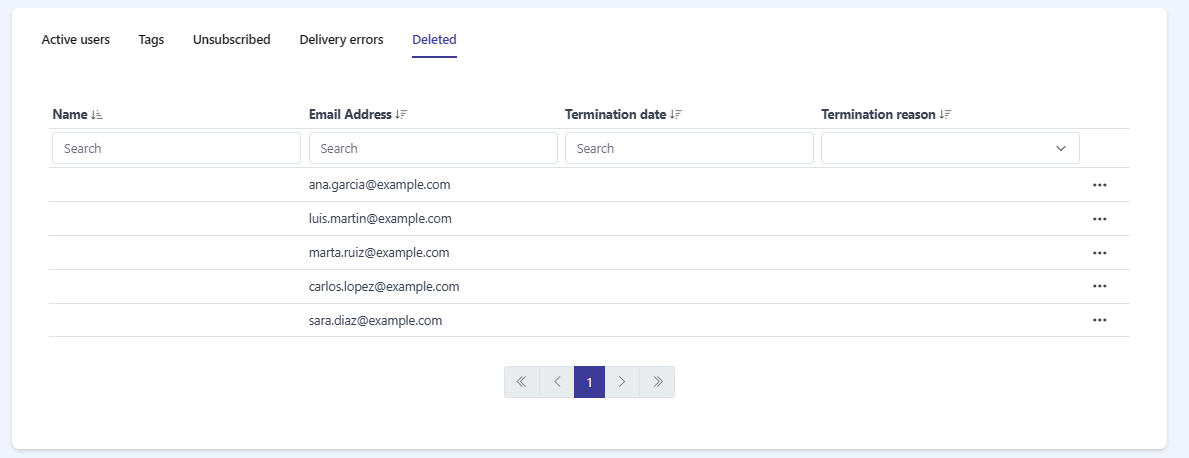
The Deleted tab lists the users who have been terminated or deactivated in your organization. They are no longer active, but they remain here with a record of when and why they were terminated.
Users appear in this tab when they are terminated — for example through Bulk delete, or by deleting a user from the Active users tab.
To open it, go to the Users section and select the Deleted tab — the fifth and last tab, after Delivery errors.
Table columns
Section titled “Table columns”The table has four columns, each with a sort control:
- Name — the user’s full name.
- Email Address — the email address the user had.
- Termination date — the date the user was terminated.
- Termination reason — why the user was terminated, either Voluntary termination or Involuntary termination.
Search and filter
Section titled “Search and filter”You can narrow the list using the controls at the top of the table:
- Sort — each of the four column headers has a sort control. Click it to order the list in ascending or descending order.
- Search — the Name, Email Address, and Termination date columns each have a Search box. Type in it to filter by that column.
- Filter — the Termination reason column has a dropdown filter. Open it and select a value to show only the matching users.
Restoring a user
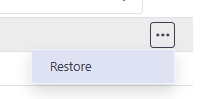
Section titled “Restoring a user”Each row has a ··· actions menu on the right with a single action:
- Restore — reactivate the user and move them back to the Active users tab.
Pagination
Section titled “Pagination”If many users have been terminated, the table is split across several pages. Use the pagination control at the bottom of the table to move between pages.
Frequently asked questions
What does the Deleted tab show?
It lists the users who have been terminated or deactivated, along with the date and reason they were terminated.
How do users end up in the Deleted tab?
They are terminated, either through Bulk delete or by deleting a user from the Active users tab.
Can I bring a deleted user back?
Yes. Open the ··· menu on the user's row and choose Restore to reactivate them and move them back to Active users.