

Users
The Users section is where you manage everyone in your organization, from the people who receive your surveys to the members who have access to the platform. It is the central place to add, organize, and review all of your contacts.
How to access
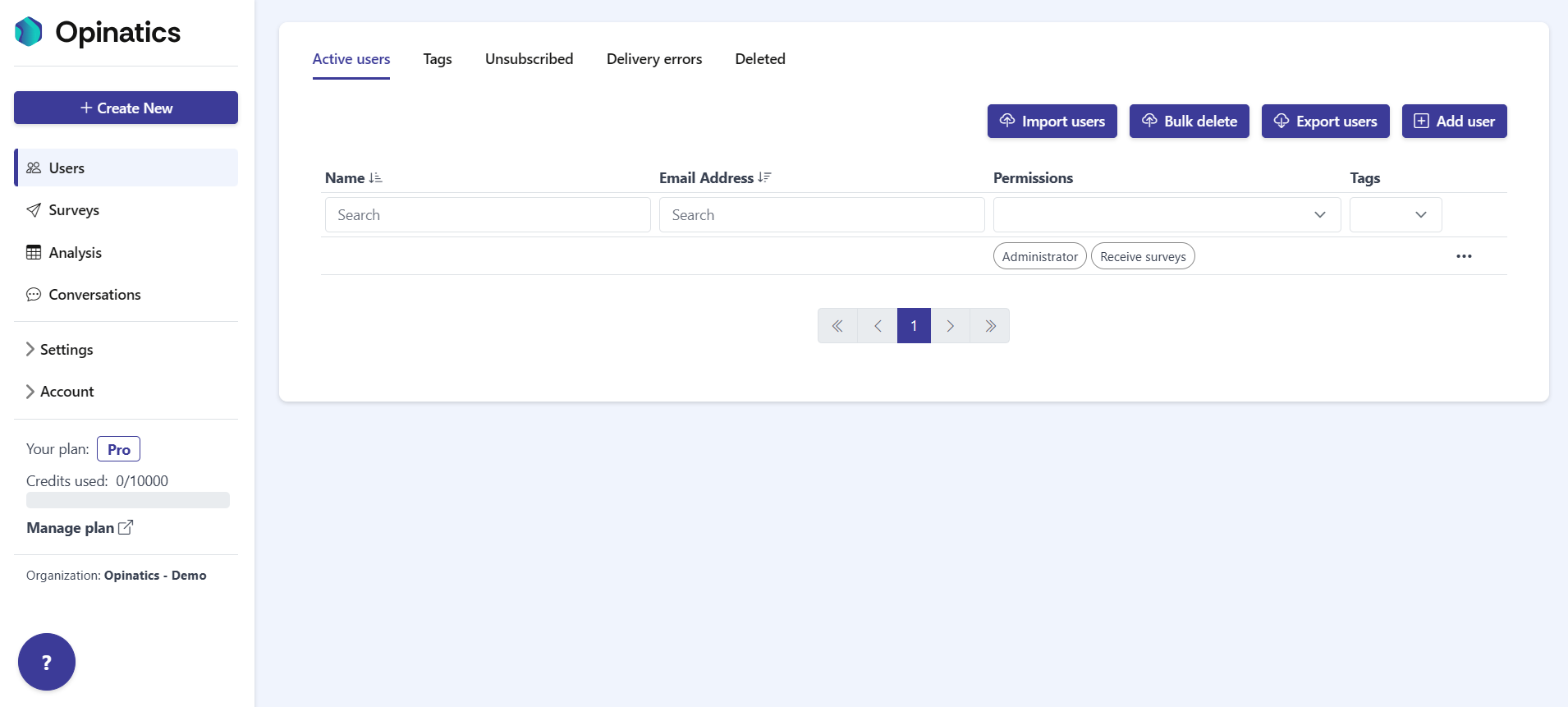
Section titled “How to access”Open the Users entry at the top of the left sidebar. It is the first item in the menu.
The section is organized into five tabs:
- Active users — the people currently active in your organization who can receive surveys.
- Tags — labels you can create and assign to group your users.
- Unsubscribed — users who have opted out of receiving surveys.
- Delivery errors — users whose messages could not be delivered.
- Deleted — users who have been removed from your organization.
Quick actions
Section titled “Quick actions”The header offers four actions that apply to your users:
- Import users — add many users at once from a file.
- Bulk delete — remove several users in a single operation.
- Export users — download your user list as a file.
- Add user — add a single user manually.
Frequently asked questions
Where is the Users section?
It is the first item at the top of the left sidebar.
What can I do from the Users section header?
Import users, Bulk delete, Export users, and Add user.
How is the Users section organized?
Into five tabs: Active users, Tags, Unsubscribed, Delivery errors, and Deleted.