

Participation
The Participation tab is the second view of a survey’s detail page. It shows how people are participating in the survey, and it provides the survey’s shareable access — a public link and a QR code.
Filter
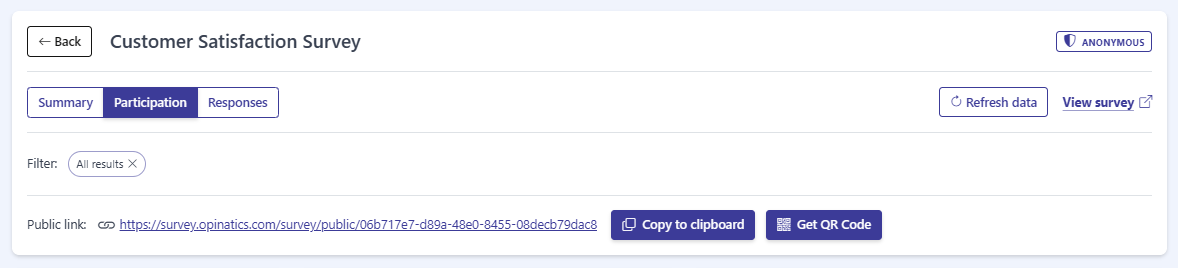
Section titled “Filter”At the top, the Filter control scopes which results are shown. By default it is set to All results; you can change or remove it to narrow the data displayed in this tab.
Public link
Section titled “Public link”The Public link: row shows the survey’s public, shareable URL (for example, https://survey.opinatics.com/survey/public/...). Anyone with this link can open and answer the survey. Two buttons sit next to it:
- Copy to clipboard — copies the public link so you can paste it into an email, message, or web page.
- Get QR Code — generates a QR code for the public link, handy for printed materials or sharing the survey in person.
Participation metrics
Section titled “Participation metrics”Three cards summarize how people are participating:
- Participation — overall participation figures for the survey.
- Participation funnel — a funnel from Opened to Completed, showing how many people moved through each step.
- Participation evolution — a chart of participation over time.
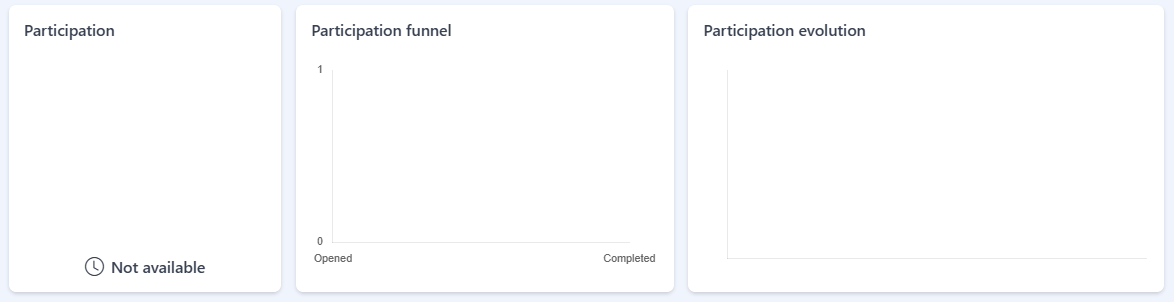
Until the survey has participation data, the cards are empty — the Participation card shows Not available, and the funnel and evolution charts have no data to plot.
Frequently asked questions
What does the Participation tab show?
Participation data for the survey, plus its public shareable link and a QR code.
How do I share the survey?
Use Copy to clipboard to copy the public link, or Get QR Code to create a QR code people can scan.
Why do the cards say Not available?
There is no participation data yet. The cards fill in once people start responding.