

Analysis
The Analysis section is where you build and manage analyses of your survey data. An analysis is a table that lets you cross-reference and segment the results of your closed surveys, so you can compare answers across different groups of respondents.
How to access
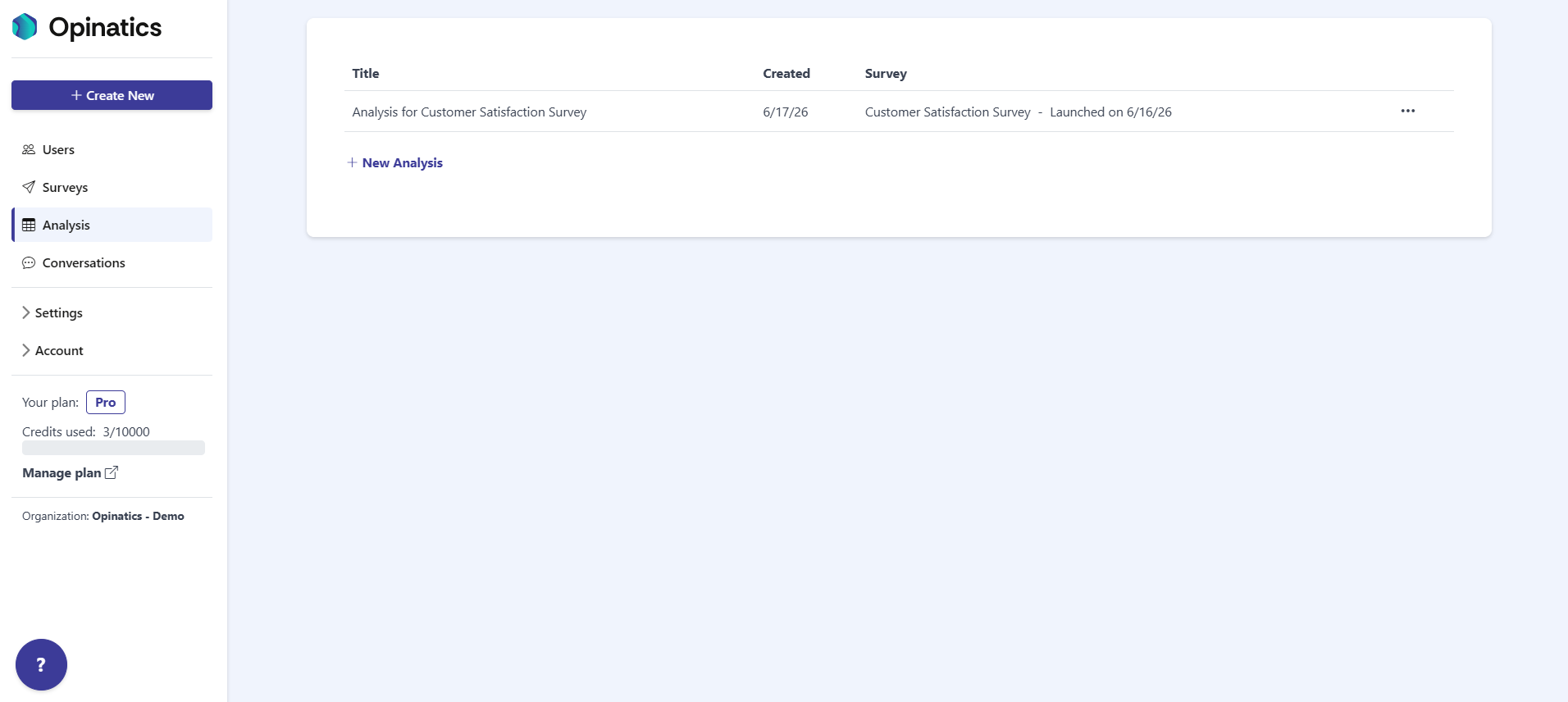
Section titled “How to access”Open the Analysis entry in the left sidebar. It is the third item in the menu, below Surveys.
Analysis list
Section titled “Analysis list”The section shows all of your existing analyses in a table. Each row is one analysis, with three columns:
- Title — the name of the analysis.
- Created — the date the analysis was created.
- Survey — the survey the analysis is based on, shown together with its launch date (for example, Customer Satisfaction Survey - Launched on 6/16/26).
Actions
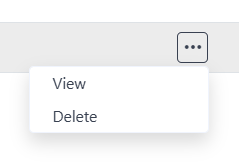
Section titled “Actions”Each row has a … menu on the right. Open it to see two options:
- View — open the analysis detail to see the full analysis.
- Delete — remove the analysis from your organization.
Create a new analysis
Section titled “Create a new analysis”At the bottom of the list, select New Analysis to start building a new analysis from one of your closed surveys.
Frequently asked questions
Where is the Analysis section?
It is the third item in the left sidebar, below Surveys.
What does each analysis show in the list?
Its Title, the Created date, and the Survey it is based on along with that survey's launch date.
How do I open or remove an analysis?
Open the ... menu on the analysis row and choose View to open it or Delete to remove it.