

Custom Fields
Custom fields let you add extra information to your employees beyond the default name and email. You can use them to segment employees and target surveys to specific groups.
To access them, go to Organization → Custom fields in the left sidebar.
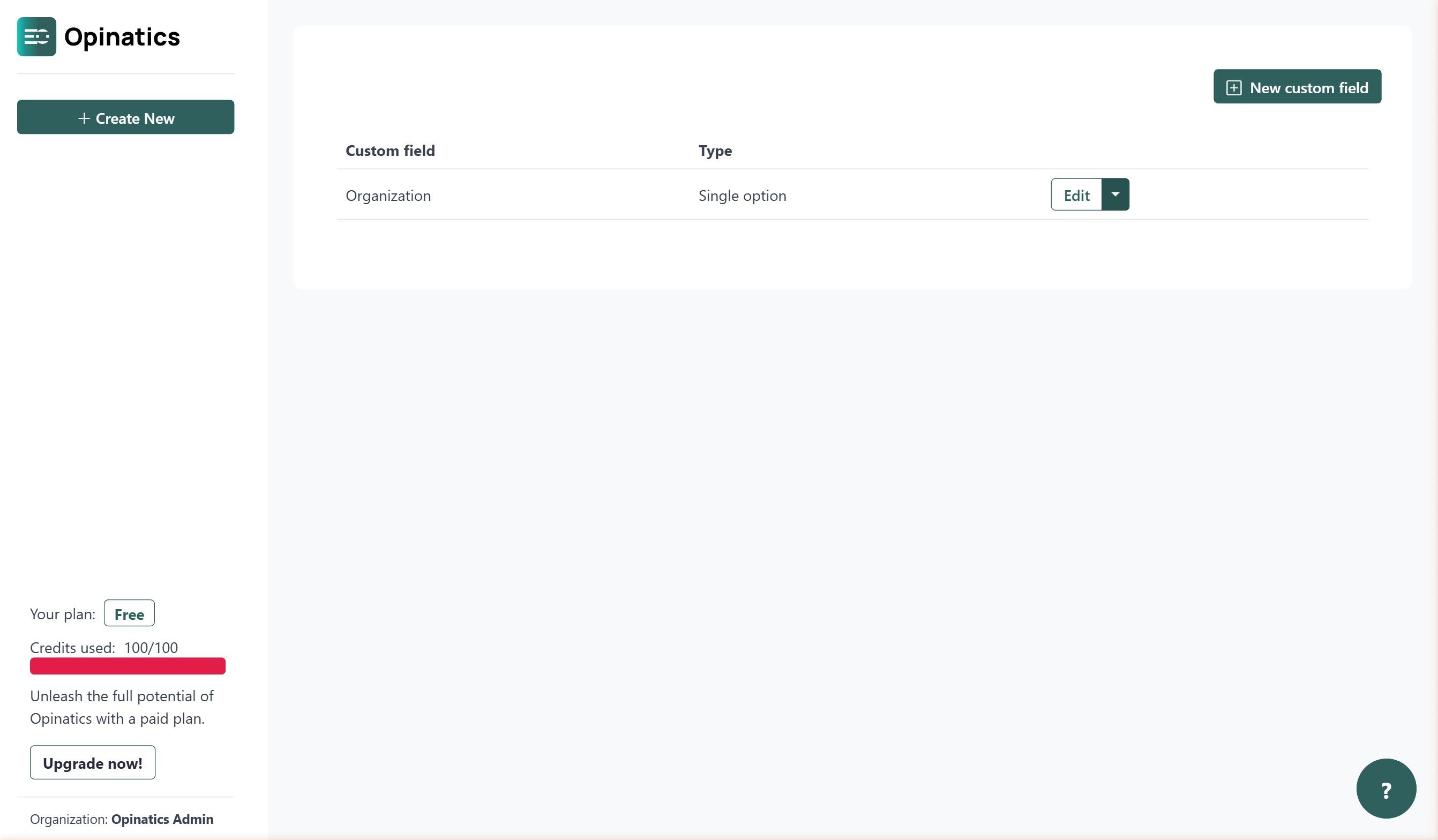
The custom fields list
Section titled “The custom fields list”The table shows all the custom fields defined for your organization. Each row displays:
- Custom field — the name of the field.
- Type — the kind of data the field accepts (for example, Single option).
Actions
Section titled “Actions”Each row has a split button on the right side with two actions:
Click the Edit button to modify the custom field’s name, type, or available options.
Delete
Section titled “Delete”Click the ▾ arrow next to Edit to reveal the Delete option. This removes the custom field from your organization.
Add a new custom field
Section titled “Add a new custom field”Click New custom field in the top-right corner to create a new field. See Create a custom field for step-by-step instructions.
Frequently asked questions
What are custom fields used for?
They let you add extra information to your employees beyond name and email, so you can segment them and target surveys to specific groups.
What happens when I delete a custom field?
It is removed from all employees permanently, and any data stored in that field is lost.
How do I add a new custom field?
Click New custom field in the top-right corner of the Custom fields page.