

A conversation
A conversation thread is the chat with a single user. It opens in the right pane when you select an entry in the conversations list. Here you read the messages exchanged and reply to the user.
Thread header
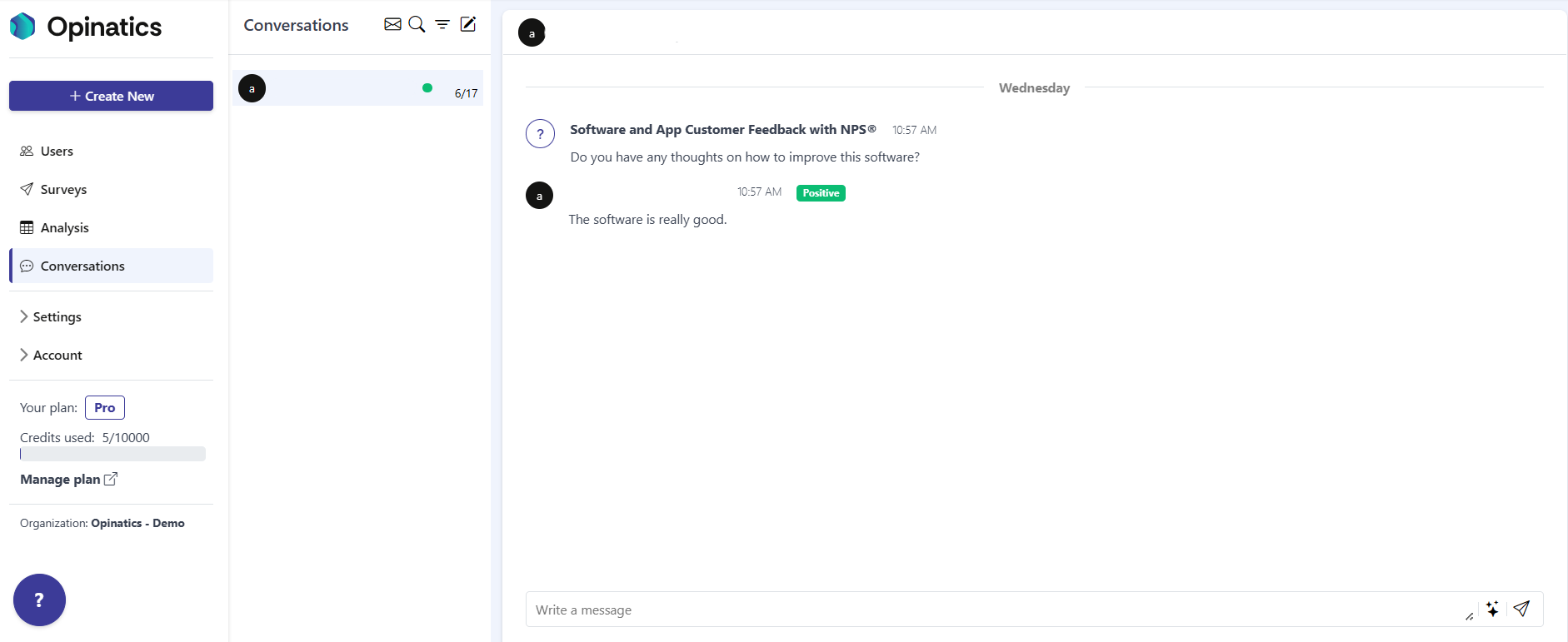
Section titled “Thread header”The top of the thread shows the user the conversation is with: their avatar and their email address.
Messages
Section titled “Messages”Messages appear in chat style, with the oldest at the top and the newest at the bottom. They are grouped by day, and a day separator (such as Wednesday) appears between messages from different days.
There are two kinds of messages:
- Survey messages. These show a ? icon, the name of the source survey (for example, Software and App Customer Feedback with NPS®), a timestamp, and the question text (for example, Do you have any thoughts on how to improve this software?).
- User answers. These show the user’s avatar and email, a timestamp, and the message text (for example, The software is really good.). When the message is a text answer, it carries a sentiment badge — for example, Positive. The sentiment is detected automatically, and other values such as Negative or Neutral are also possible.
Replying
Section titled “Replying”At the bottom of the thread is the Write a message box. Type your reply there to answer the user.
To the right of the box are three icon buttons:
- Resize control — expands or shrinks the message box so you have more room to write.
- AI assist — an AI helper that helps you draft the reply.
- Send (paper plane) — sends your message to the user.

Frequently asked questions
How do I open a conversation thread?
Select an entry in the conversations list. The thread opens in the right pane.
What does the sentiment badge on an answer mean?
It shows the tone detected automatically for that text answer, such as Positive, Negative, or Neutral.
How do I reply to a user?
Type in the Write a message box at the bottom of the thread and select the send (paper plane) icon.