

Surveys
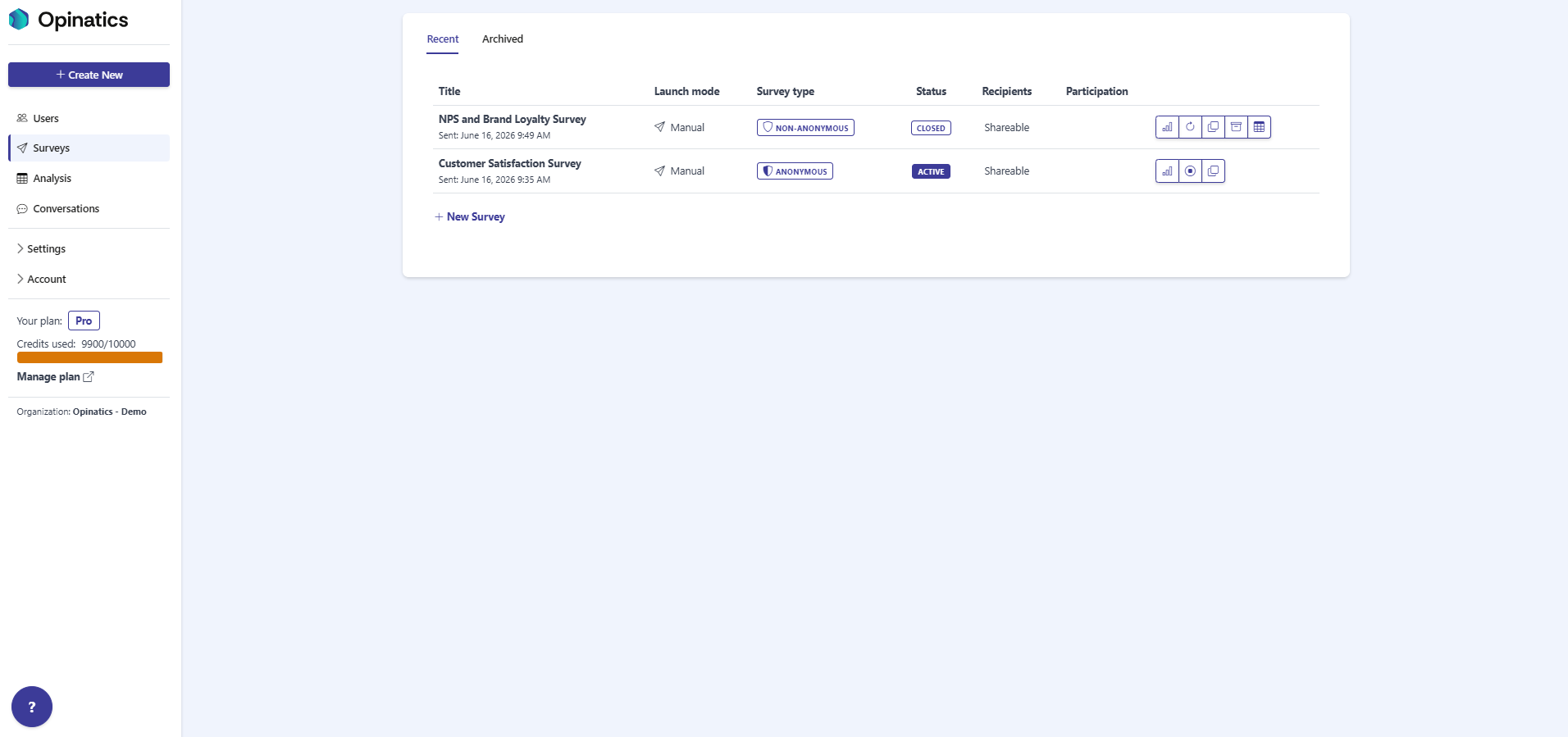
The Surveys section is where all of your organization’s surveys are listed and managed. From here you can review each survey’s status at a glance, switch between your current and archived surveys, open a survey to see its results, and use the per-survey action buttons.
How to access
Section titled “How to access”Open the Surveys entry in the left sidebar. It is the second item, below Users.
The page has two tabs:
Table columns
Section titled “Table columns”Each survey appears as a row with the following columns:
- Title — the survey’s name, with the date it was sent shown below it (for example, Sent: June 16, 2026 9:49 AM).
- Launch mode — how the survey is launched (for example, Manual).
- Survey type — a badge showing whether the survey is Anonymous or Non-anonymous.
- Status — the survey’s current state: Active, Closed, or Draft.
- Recipients — who can answer the survey (for example, Shareable).
- Participation — participation information for the survey.
Per-survey actions
Section titled “Per-survey actions”On the right of each row is a set of action buttons. Which buttons appear depends on the survey’s Status. See Survey actions for what each button does.
Click a survey’s Title to open its detail and results view. See Survey details for more.
Frequently asked questions
Where do I find my surveys?
Open Surveys in the left sidebar. It is the second item, below Users.
What is the difference between the Recent and Archived tabs?
Recent shows your current surveys. Archived shows surveys that have been archived.
What does the Survey type column show?
Whether a survey is Anonymous or Non-anonymous.