

Conversations
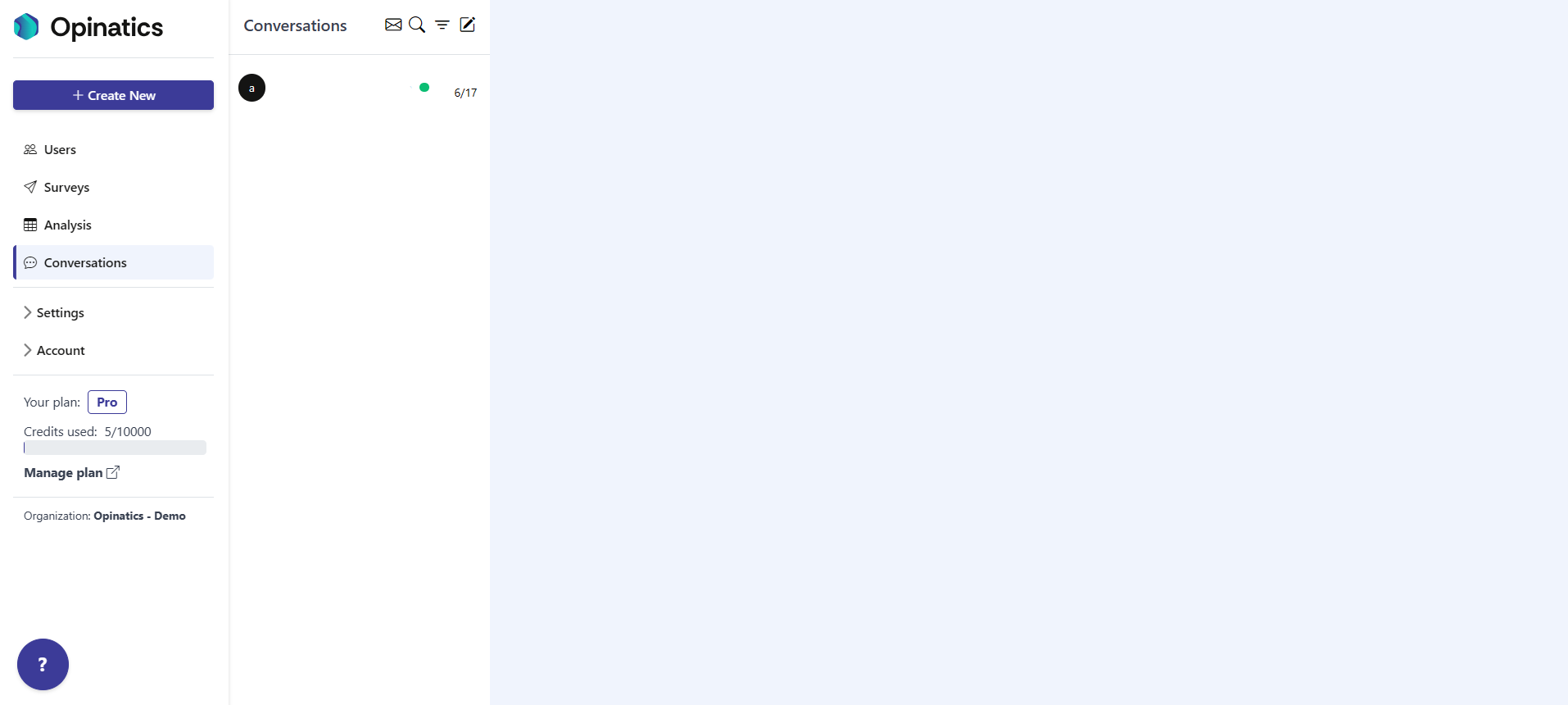
The Conversations section is an inbox-style space where your organization talks with its users. It works like a chat: a list of conversations on the left, and the selected message thread on the right.
Two kinds of content appear here:
- Direct conversations you start with a user to ask for more detail or gather specific feedback.
- Survey text answers that were set to flow into Conversations. A text question sends its answers here only when it has the Automatically add answers to conversation option enabled in the survey editor. When that option is on, each user’s written answer arrives as a message you can read and reply to.
How to access
Section titled “How to access”Open the Conversations entry in the left sidebar. It is the fourth item in the menu, below Analysis.
The conversations list
Section titled “The conversations list”The left pane is your inbox. It lists every conversation, with the most recent at the top. Each entry shows:
- The user the conversation is with (for example, their email).
- The date of the latest activity.
- A colored status dot that tells you the conversation’s state, such as unread or active.
Select any entry to open its message thread in the right pane.
Header toolbar
Section titled “Header toolbar”Next to the Conversations title there are four icon buttons. From left to right:

-
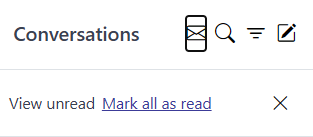
Envelope icon — unread controls. Opens a small bar with two actions: View unread, which shows only unread conversations, and Mark all as read, which marks every conversation as read.
-
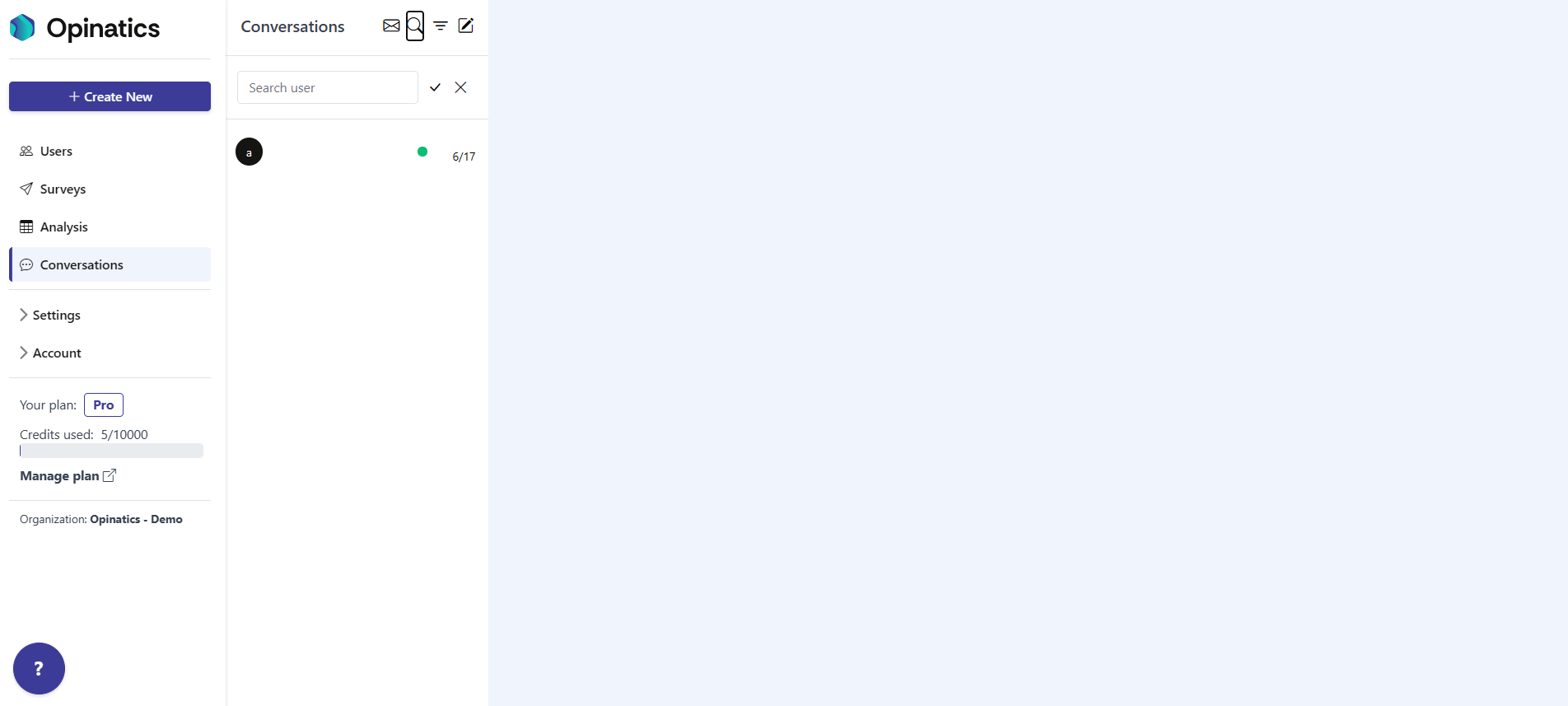
Magnifying glass icon — search. Opens a Search user field so you can find conversations by user.
-
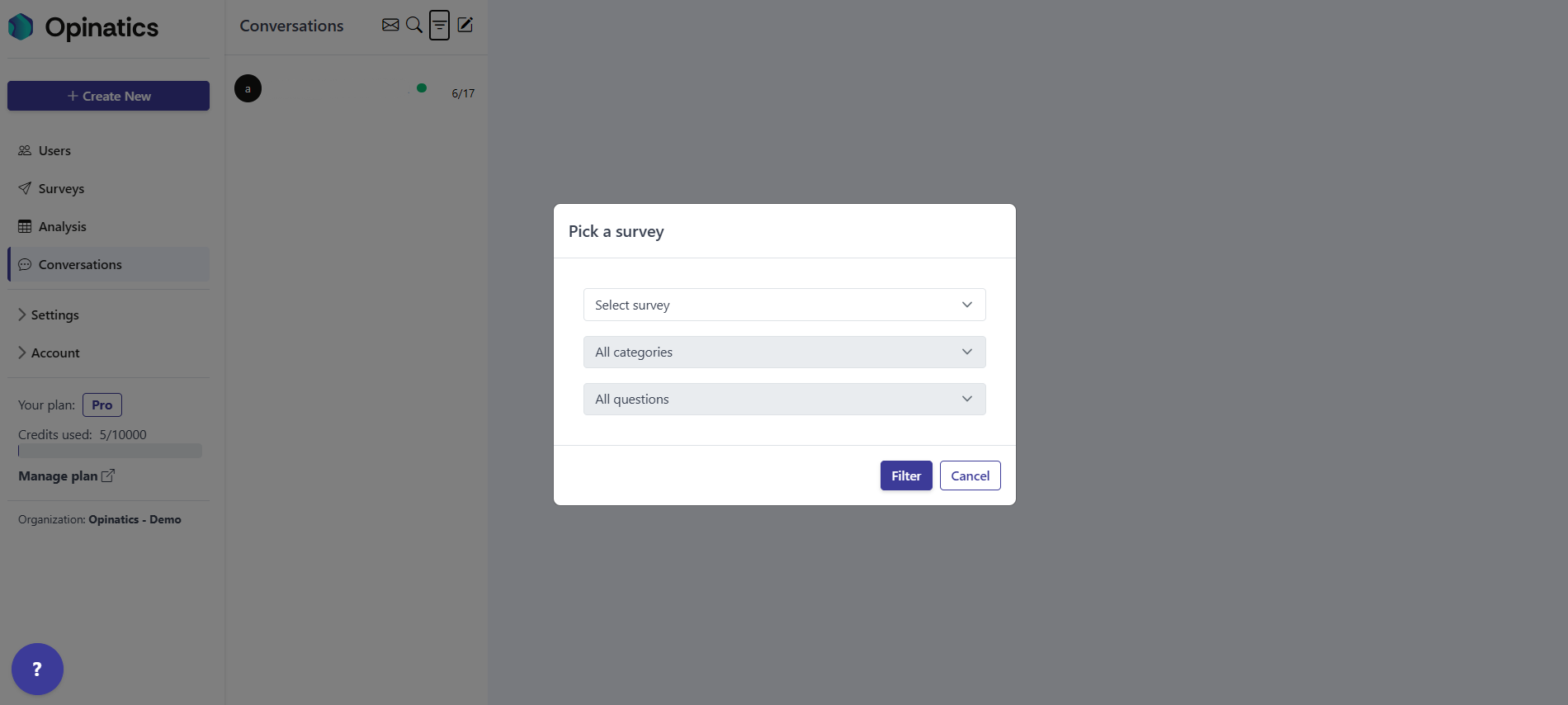
Funnel icon — filter. Opens the Pick a survey panel, where you can narrow the list by survey, category, and question. See Filtering by survey below.
-
Compose icon — new conversation. Starts a new conversation with a user.
Filtering by survey
Section titled “Filtering by survey”The funnel icon opens the Pick a survey panel. It has three dropdowns:
- Select survey — choose the survey whose answers you want to see.
- All categories — narrow the results to a single question category.
- All questions — narrow the results to a single question.
Select Filter to apply your choices, or Cancel to close the panel without filtering.
Opening a conversation
Section titled “Opening a conversation”Select an entry in the list to open its full message thread on the right, where you can read the exchange and reply. To learn more, see the conversation thread.
Frequently asked questions
Where is the Conversations section?
It is the fourth item in the left sidebar, below Analysis.
Why do some survey answers appear in Conversations?
A text question only sends its answers here when it has the Automatically add answers to conversation option enabled in the survey editor. Without that option, the answers stay in the survey results only.
How do I see only unread conversations?
Select the envelope icon next to the Conversations title, then choose View unread. You can also choose Mark all as read to clear every conversation at once.
How do I find a conversation with a specific user?
Select the magnifying glass icon and type into the Search user field.